
Getting Started
Video Walkthrough
Section titled “Video Walkthrough”We understand that getting familiar with new apps can sometimes be daunting at first. If you have any questions during your Workspace Docs journey, don’t hesitate to contact us through the ‘Need help’ button in our app or via the chat icon in the bottom right corner. We’re here to help.
Terminology
Section titled “Terminology”Before we go any further, here are the main terms you’ll come across using Workspace Docs:
Collections: Each collection is linked to a specific board in your monday account. This categorises your content into smaller sub sections of your site.
Board view: This is a monday term, and in our case, relates to the Workspace Docs board view.
Global Settings
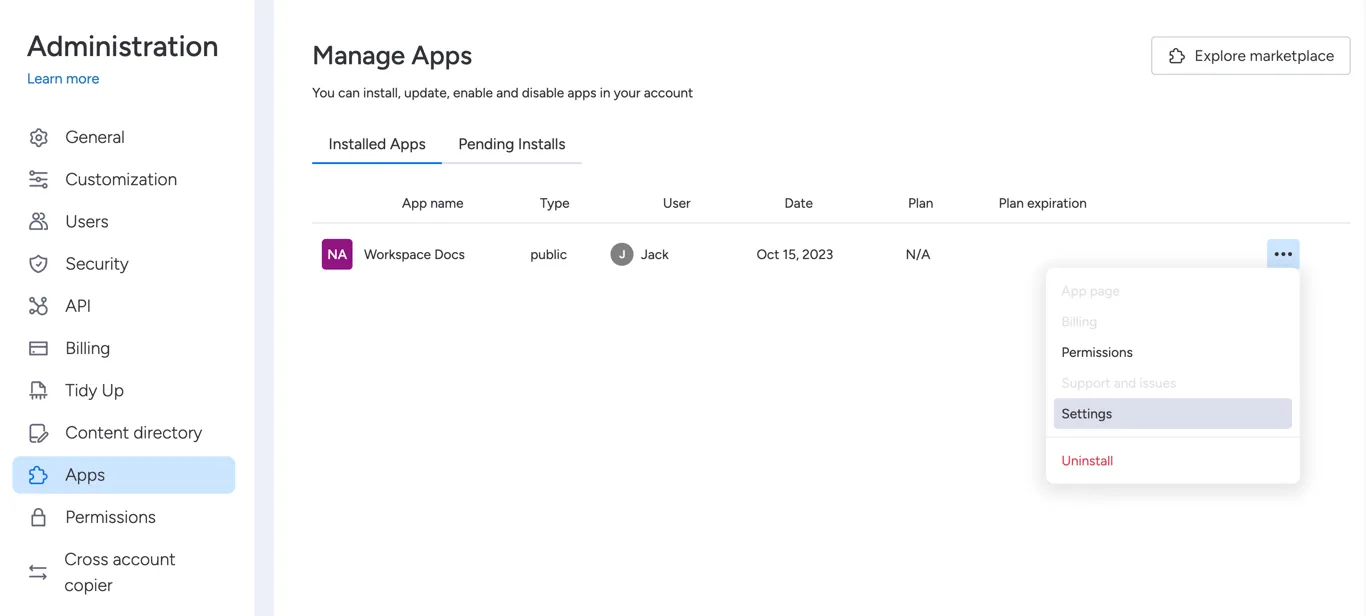
Section titled “Global Settings”Once installed, the Workspace Docs app will show in your installed apps list. You can access this list by clicking on your profile picture in the top right corner of your monday account and then heading to Administration > Apps. Then simply click on the three dots next to Workspace Docs and click Settings.
This will then open the main Global Settings of Workspace Docs. Settings for your docs site, such as your custom subdomain, organisation name and branding, can all be customised here.
Treat this as the home of your Workspace Docs account.
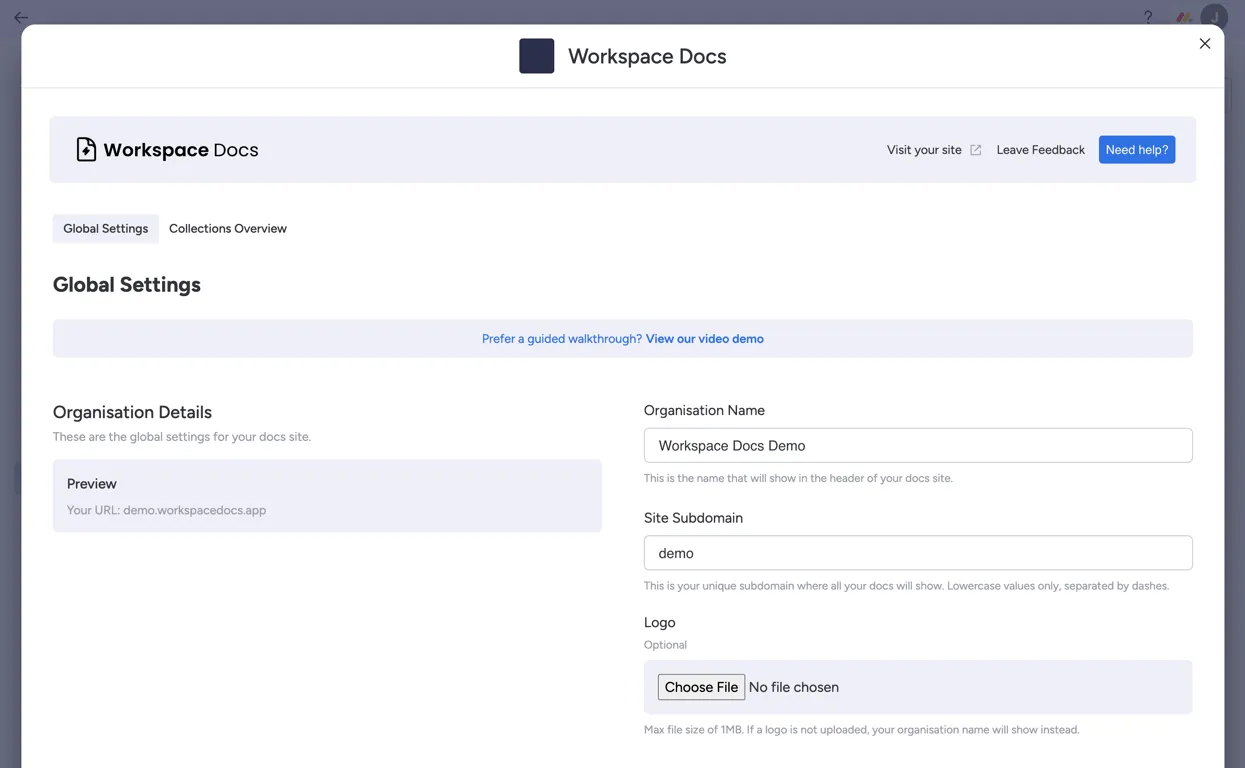
You will also find an option on this page to publish or unpublish your docs site as a whole. This can be useful while you’re still setting up your collections, or if you just want to hide your docs site entirely down the track.
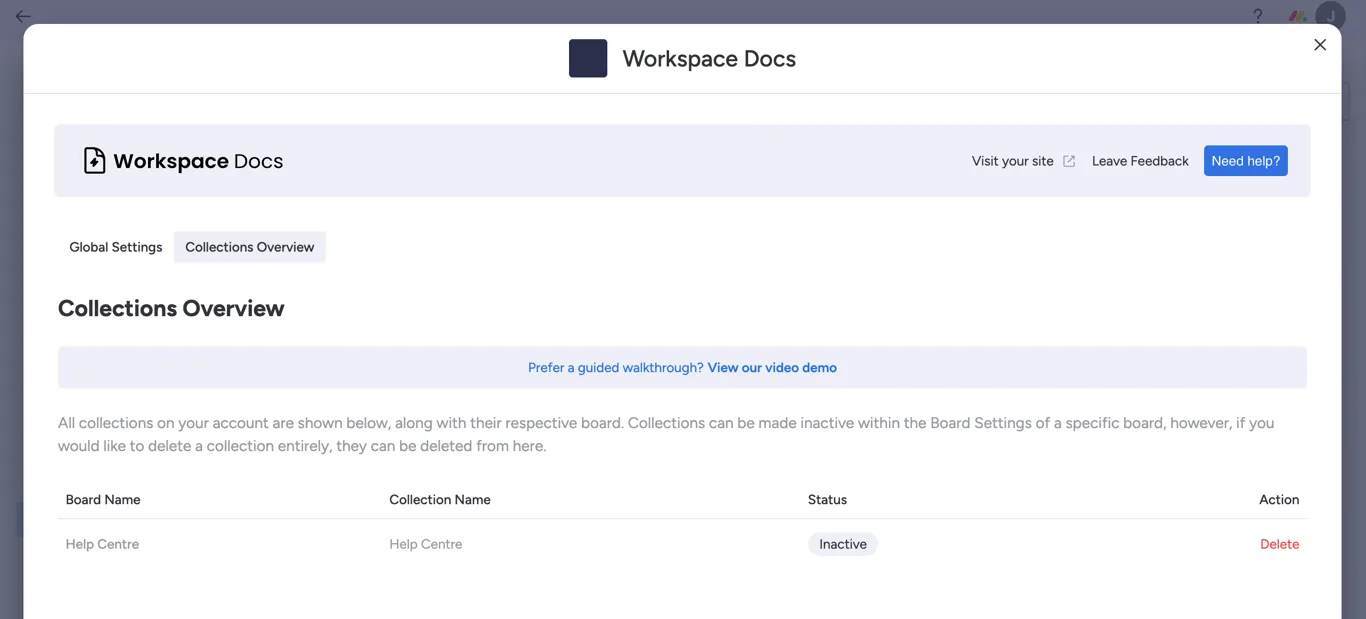
You can also see at a glance which collections you currently have setup and which boards they are linked to through the Collections Overview tab. This can be useful for deleting collections from your site completely, especially if you have deleted the board the collection was linked to.
If you are following along and just installed the app, this will show empty for now. See the next step for adding your first collection.
Creating collections
Section titled “Creating collections”Once your Global Settings are configured, it’s time to add your first collection! This can be done by navigating back to your dashboard and either selecting an existing board which already has monday workdocs in columns, or by creating a new board.
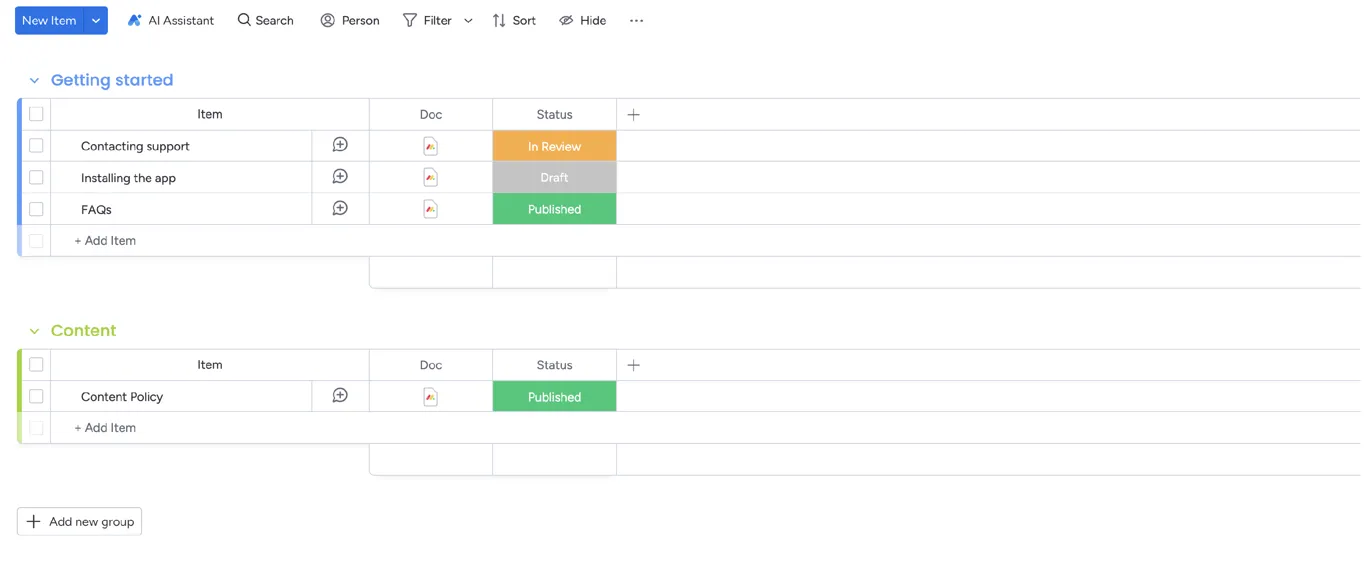
Your board structure can be as simple or as complex as you like, however, it must have the following two columns:
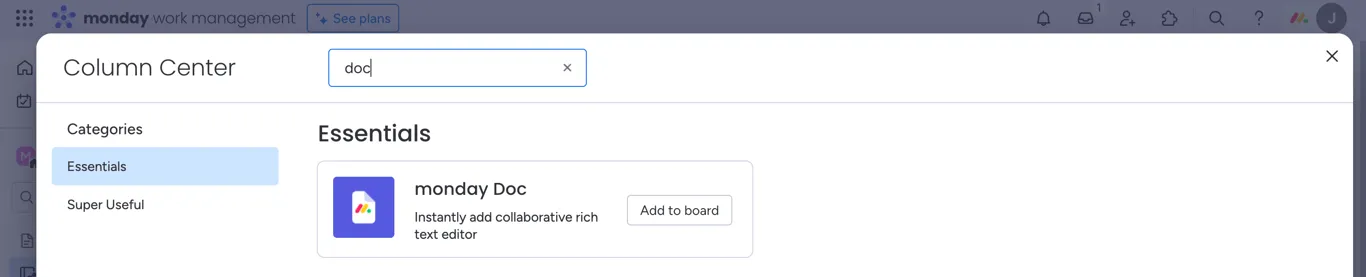
monday Doc column
Section titled “monday Doc column”This is where you’ll write, store and edit your docs content.
Status column
Section titled “Status column”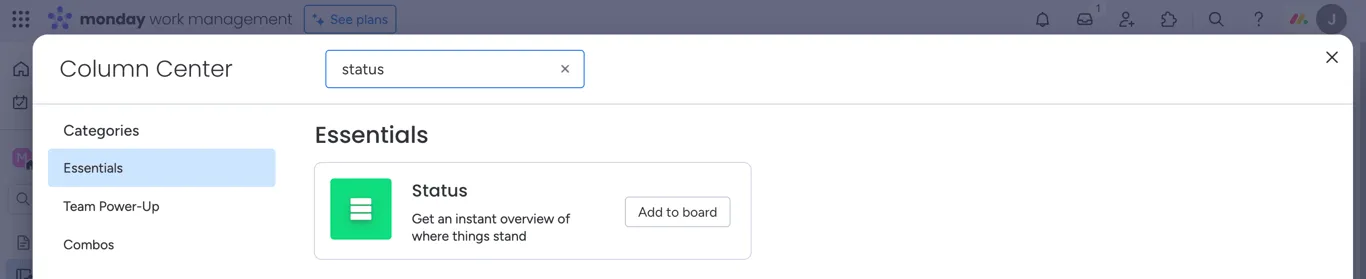
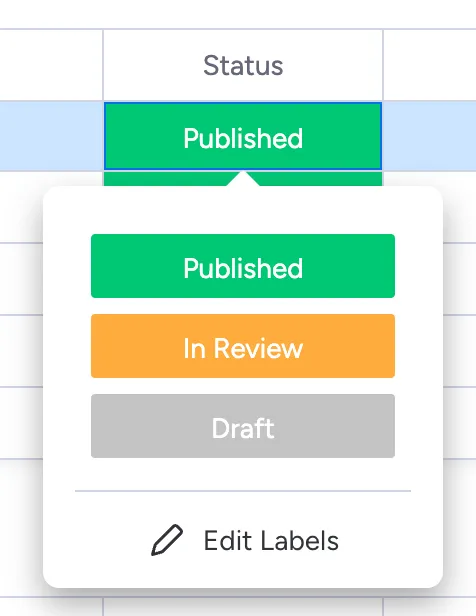
This is what will determine whether or not to publish a specific item’s doc. For example, you could have the statuses of ‘Published’, ‘In Review’, ‘Internal’ or ‘Draft’. Only when the item is assigned the first item, will the doc be published on your docs site.
Example:
Example board
Section titled “Example board”At this point, you should have a board similar to this:
How data is mapped to your docs site
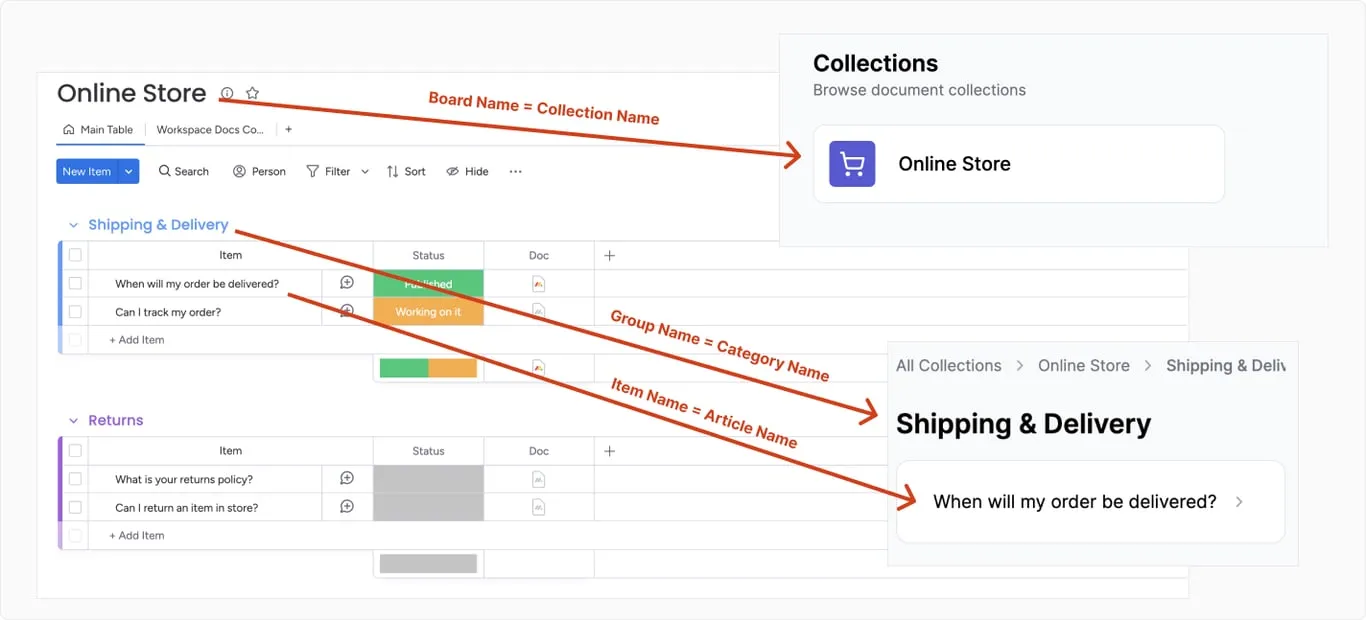
Section titled “How data is mapped to your docs site”Below is an example of which aspects from your board are mapped to your docs site:
Adding the board view
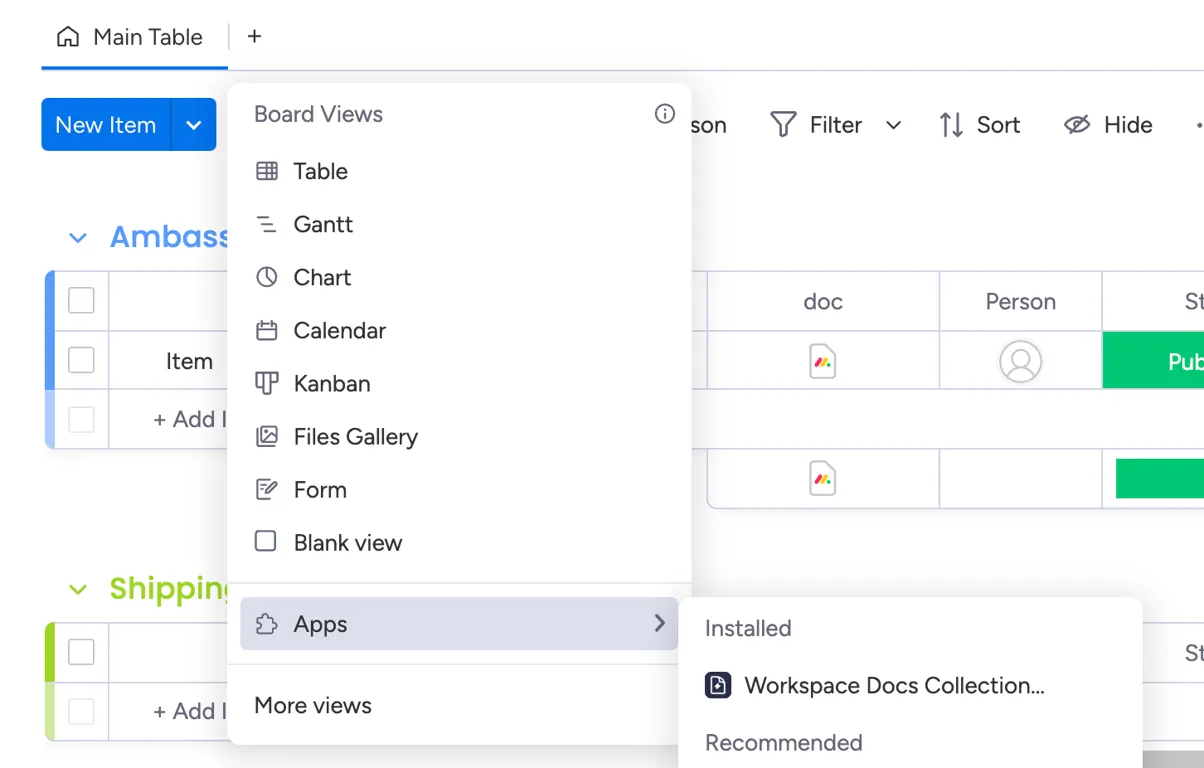
Section titled “Adding the board view”Once you have a board setup with the required columns (as shown above), you’re ready to add Workspace Docs and make it into a collection! You can do so by adding a board view. Simply click on the + button and navigate to Apps > Workspace Docs Collection Settings.
This will create a new board view which will let you customise the settings for this board.
Board Settings
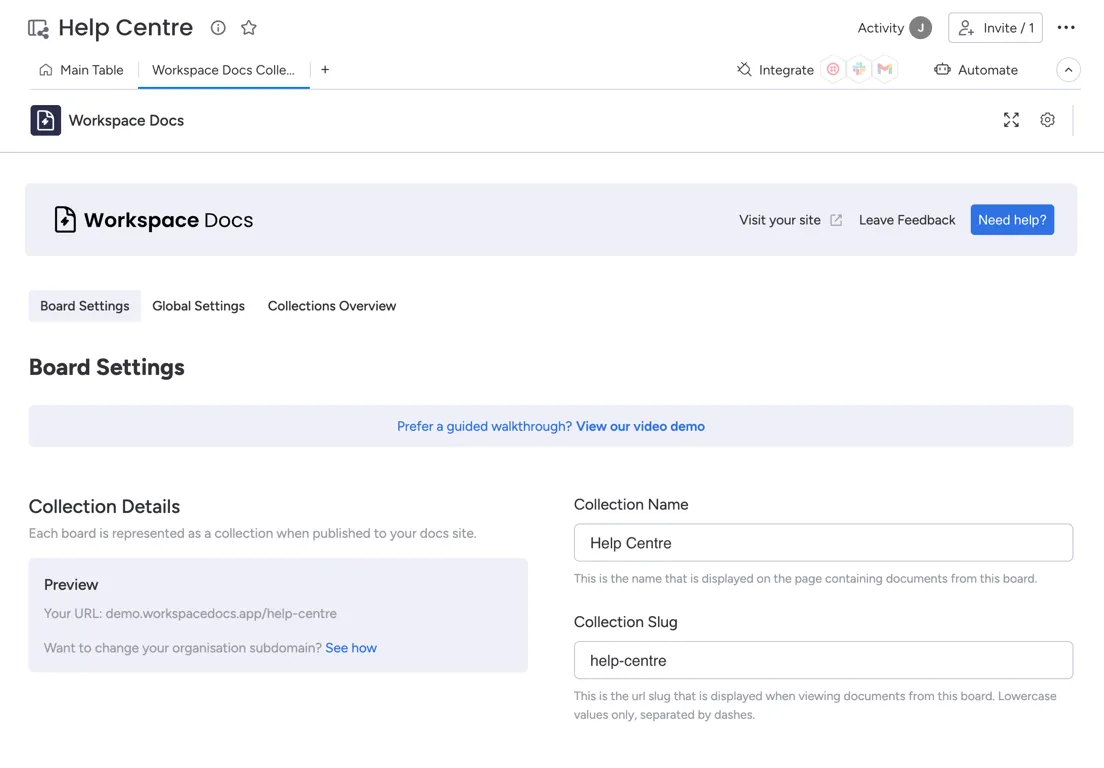
Section titled “Board Settings”To customise your collection, click on the newly created Workspace Docs board view and complete the fields. This will let you customise aspects of your collection, such as its name, URL slug and colours.
Mapping columns
Section titled “Mapping columns”Remember those columns that you created above? Well they’re going to come in handy now. Simply map the status and docs column created above to the column type so we know where to find it.
For example:
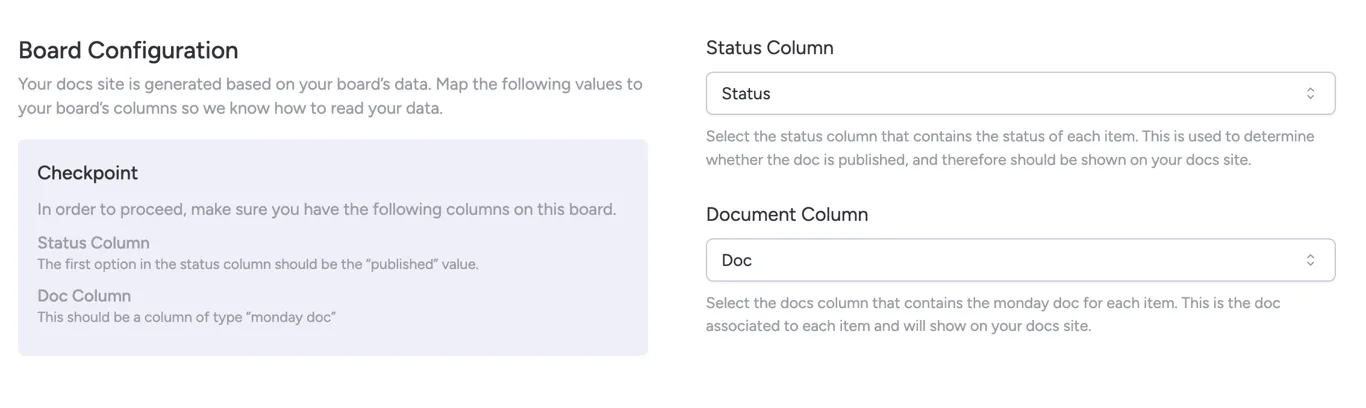
You also have the option on this page to publish or unpublish this collection to your docs site through the Active toggle.
Creating additional collections
Section titled “Creating additional collections”The process of adding a new collection as shown above can be repeated to add additional collections to your docs site. Simply create a new board (or duplicate an existing one) and add the Workspace Docs board view.
Supported doc blocks
Section titled “Supported doc blocks”While we have support for most block types, there are some blocks we don’t yet support. We are always looking to expand which block types we support and make Workspace Docs even better, so if you have a block type you’d like to see, please let us know.
Below is a summary of the blocks from monday workdocs that Workspace Docs currently supports and can handle.
| Type | Status | Comments |
|---|---|---|
| Normal text | Supported | Typically known as a p tag. |
| Small title | Supported | Typically known as a h3 tag. |
| Medium title | Supported | Typically known as a h2 tag. |
| Large title | Supported | Typically known as a h1 tag. |
| Checklist | Supported | Shows as a bulleted list. |
| Bulleted list | Supported | |
| Numbered list | Supported | |
| Quote | Supported | |
| Notice box | Supported | |
| Table | Supported | |
| Image | Supported | We recommend files of the following formats: .gif .jpg .jpeg .png .bmp. |
| Dividers | Supported | |
| Video | Supported | YouTube recommended. Let us know if you want a new host added. |
| Layout | Supported | |
| Code blocks | Basic support | |
| Internal embedded data | Not yet supported | This includes dashboards, boards or other content that’s embedded into the doc. |
If you are experiencing issues with any of the above supported block types, please let us know. Given the flexibility of monday.com, some accounts may be using newly added features or features we haven’t tested yet.
What happens if I use an unsupported block type?
Section titled “What happens if I use an unsupported block type?”Some unsupported blocks may still work if they are similar to other blocks we do support, however, this isn’t guaranteed. In most cases, if we don’t support a block, that piece of content will be ignored and won’t show on the doc on your docs site, however, all other blocks within that doc will continue to show as normal. If you are noticing that a section from your doc in your monday account doesn’t show on your docs site, this is likely the reason.