
Getting Started
Installation
Section titled “Installation”The app can be installed via the monday.com App Marketplace. Simply search for File Converter.
Board Setup
Section titled “Board Setup”File Converter has 1 automation to convert your files, and follows the template of ‘Convert files in Files to File Format and save converted files in Converted Files’.
The automation has three components:
- File column: The files you’d like to convert
- Convert to: The file format you’d like to convert the files in File column to (this is selected within the automation itself)
- Converted Files column: The files column where the converted files are saved to
| Automation Name | Required Columns |
|---|---|
| Convert files in Files to File Format and save converted files in Converted Files | Files column: File (the original files), Converted files column: File (the converted files) |
Using automation templates
Section titled “Using automation templates”Now that your board structure is ready to go, let’s generate links using a pre-made automation template.
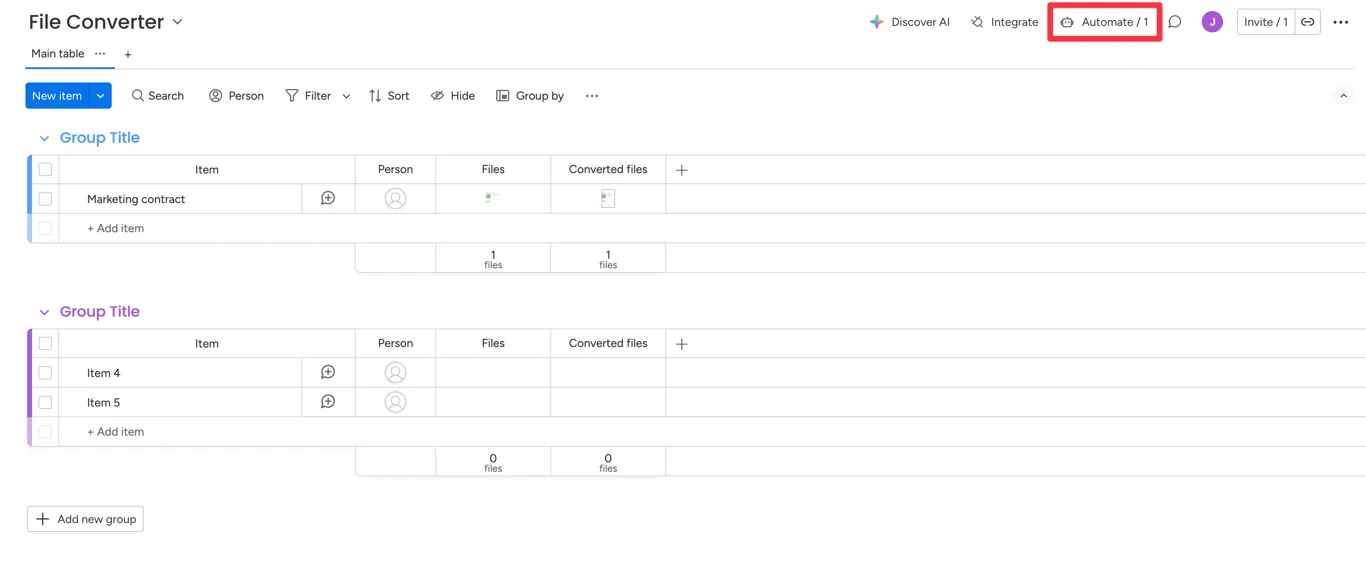
Click on Automate in the top right corner
Go to Templates/Connect and search for File Converter
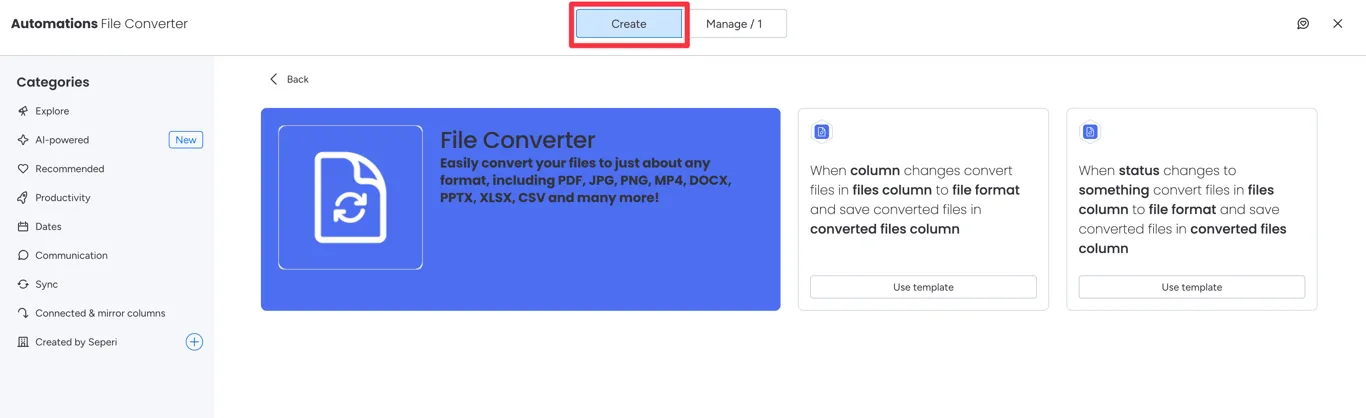
This will then direct you to the recipe builder.
On this page all the columns in grey need to be populated with the columns on your board. Both the first and second fields should be the same files column where you’ll be uploading assets to. This will allow the automation to trigger whenever an asset is added or removed from the column.
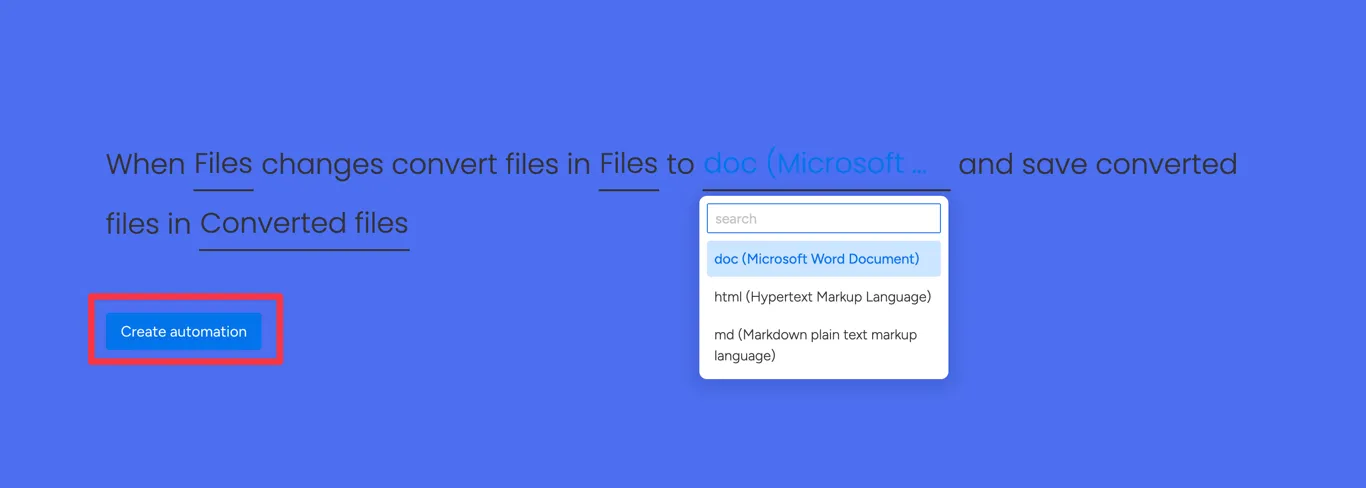
When all the fields are filled out, click Create Automation in the bottom left of your screen.
Creating your own custom automation
Section titled “Creating your own custom automation”Custom automations can also be used if the trigger of the templates doesn’t work for your use case. For example, if you would prefer to have another trigger, such as manually clicking a button, you can achieve this by using a custom automation.
To do this, navigate to the Automations page like before, and select Manage in the top tab instead of Connect.
From here, click Add new automation. This will then allow you to create a custom trigger (for example on button click). Then search for File Converter in the actions section to see the available File Converter actions.
Supported file conversions
Section titled “Supported file conversions”File Converter supports over 80 file conversion formats. The full list of available formats is available in the automation setup screen which you can select from.
Popular conversions
Section titled “Popular conversions”- PDF <-> Word (DOCX)
- PDF <-> Excel (XLSX)
- JPG/PNG <-> PDF
- HTML <-> PDF
- MP4 <-> MOV
- GIF <-> MP4
All file formats
Section titled “All file formats”While majority of popular file conversions are fully supported, on the off-chance a conversion doesn’t go through, let us know, as it may be a input output file combination we don’t yet support.
Available file formats:
- pdf (Portable Document Format)
- doc (Microsoft Word Document)
- docx (Microsoft Word XML Format Document)
- xls (Microsoft Excel Spreadsheet)
- xlsx (Microsoft Excel 2007 Spreadsheet)
- ppt (Microsoft PowerPoint Presentation)
- pptx (Microsoft PowerPoint 2007 Presentation)
- txt (Text Document)
- html (Hypertext Markup Language)
- html5 (Modern Hypertext Markup Language)
- jpg (JPEG compliant image)
- png (Portable Network Graphic)
- gif (Compuserve graphics interchange)
- mp3 (Compressed audio file)
- mp4 (MPEG-4 Video File)
- csv (Comma Separated Values)
- xml (Extensible Markup Language)
- odt (OpenDocument Text)
- pdfa1a (PDF/A-1a, PDF Archive Level A Conformance)
- pdfa1b (PDF/A-1b, PDF Archive Level B Conformance)
- rtf (Rich Text Format)
- svg (Scalable Vector Graphics)
- wav (Windows audio file)
- avi (Windows video file)
- mov (Apple QuickTime Movie)
- wmv (Windows Media Video)
- flac (Free Lossless Audio Codec)
- m4a (Compressed video file)
- ogg (Ogg Vorbis Compressed Audio File)
- wma (Windows Media Audio)
- epub (Open eBook File)
- mobi (Mobipocket eBook)
- html5-1page (Modern HTML in single file)
- ps (PostScript)
- txtz (Text Archive e-Book)
- ico (Windows Icon)
- eml (E-mail Message format)
- msg (Outlook E-mail Message)
- swf (Macromedia Flash Format File)
- mht (MHTML Document (MIME HTML))
- cab (Cabinet File)
- dwg (AutoCAD Drawing Database)
- dxf (AutoCAD Drawing Interchange Format)
- lzh (Compressed Archive File)
- zip (Compressed Archive File)
- 7z (7-Zip Compressed File)
- tar (Tape Archive File)
- tar.gz (Gzip Compressed Archive)
- tar.bz2 (Bzip 2 UNIX Compressed File)
- avif (AV1 Image format)
- bmp (Windows bitmap)
- tiff (Tagged image file format)
- tga (Truevision Targa Graphic)
- wbmp (Wireless Bitmap File Format)
- fb2 (FictionBook 2.0 File)
- azw3 (Amazon KF8 eBook File)
- lit (Microsoft eBook File)
- lrf (Sony Portable Reader File)
- pdb (Palm Media eBook File)
- prc (Mobipocket eBook File)
- rb (RocketEdition eBook File)
- snb (Shanda Bambook e-Book)
- tcr (Psion eBook File)
- htmlz (Zipped HTML e-Book)
- yz1 (DeepFreezer Compressed Archive)
- pcx (Paintbrush Bitmap Image)
- thumbnail (Thumbnail image)
- eps (Encapsulated PostScript)
- aac (Advanced Audio Coding File)
- ac3 (AC3 Audio File)
- m4r (iPhone Ringtone File)
- webp (Lossily compressed image file)
- webm (Multimedia Container Format)
- 3gp (3GPP Multimedia File)
- 3g2 (3GPP2 Multimedia File)