Getting Started
Don’t hesitate to contact us if you have any questions about the app or your specific use-case. We’re always looking to improve and add new features, so let us know!
Once you have installed the app, add the Board Publisher Settings as a board view to a board.

Board Settings
Section titled “Board Settings”Board Settings are unique to each board you add Board Publisher to, and allow you to customise and configure your published board. Simply go through the options and press ‘save’ when you’re done.
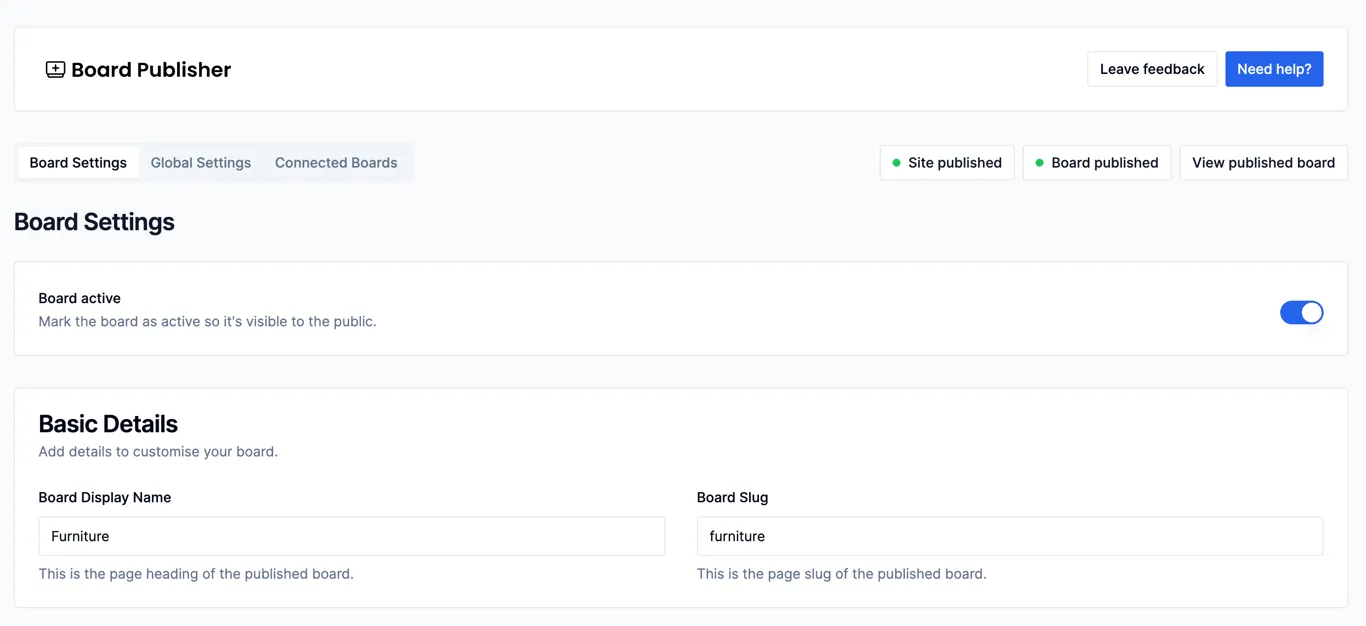
If this is your first board with Board Publisher, and you haven’t yet completed the ‘Global Settings’, you will likely see an indicator in the top right saying ‘Site unpublished’. To publish your site, you will need to complete the Global Settings (see next step).

If you have already completed your Global Settings, you should see a ‘View published board’ button in the top right (provided you have the toggle for ‘Board active’ as on at the top of this page). This will open the published board which can then be shared.

Global Settings
Section titled “Global Settings”Global Settings are settings that are global across your entire Board Publisher account. They let you control things like your subdomain, organisation name and external links to show in your header and footer.
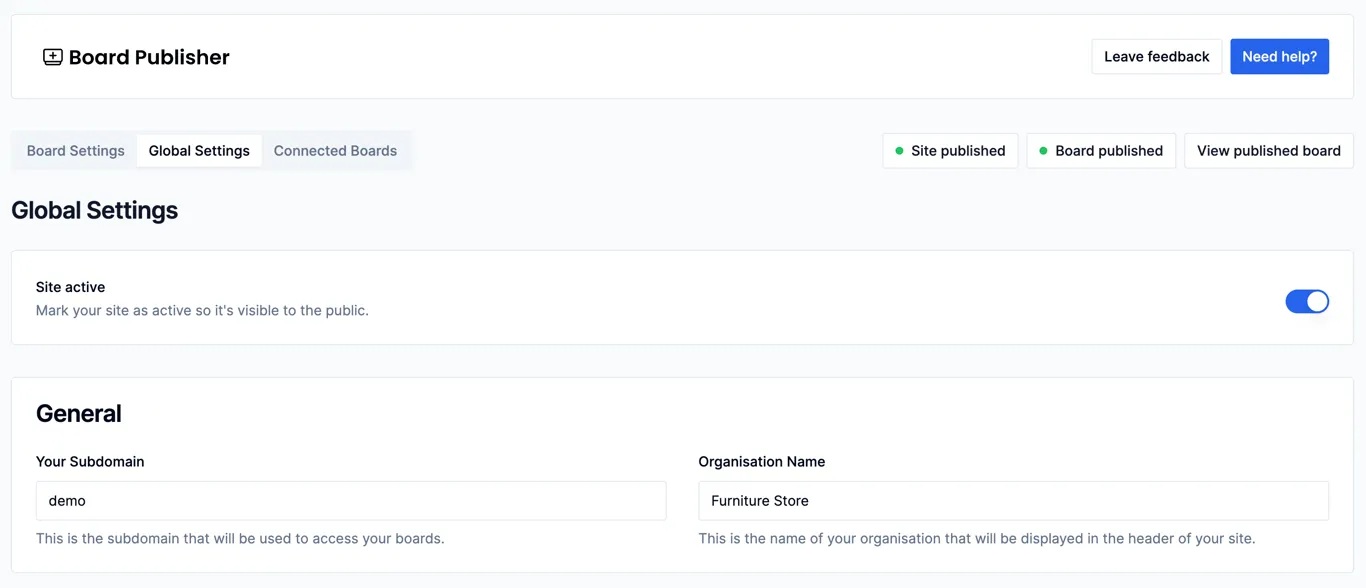
These settings can be accessed in any Board Publisher Settings board view, or in the “Apps” section of your account (navigate there through clicking your profile image > administration > apps) where you can click the three dots and “Settings”.

Connected Boards
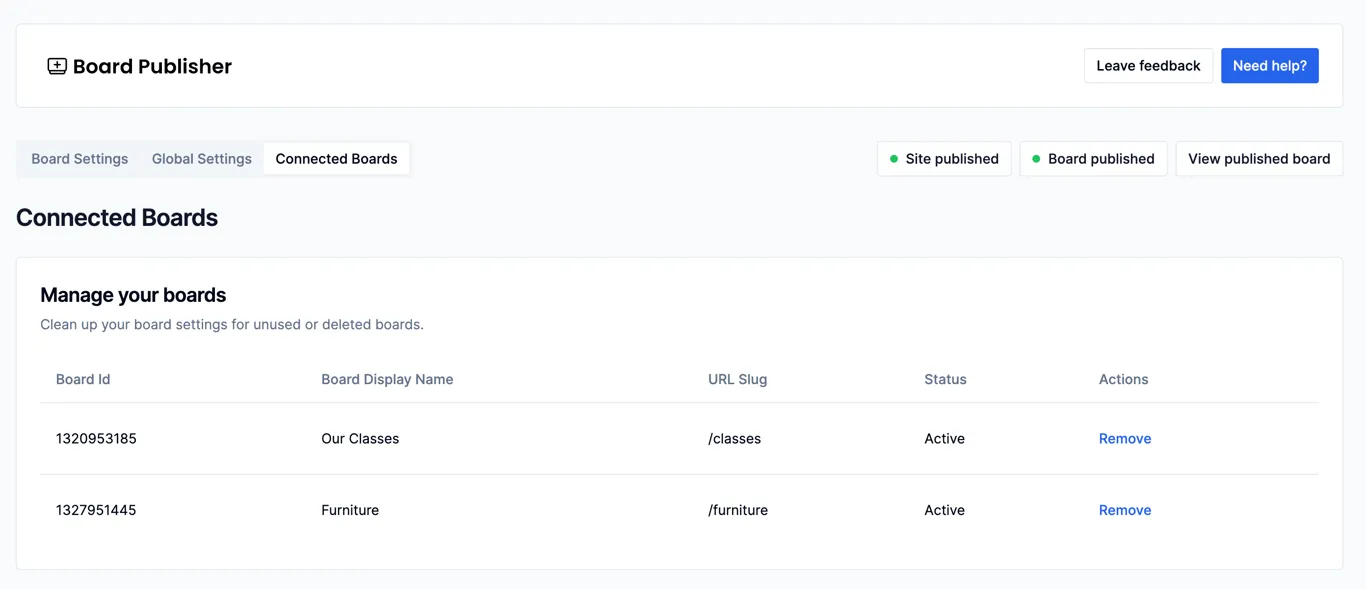
Section titled “Connected Boards”The Connected Boards tab allows you to see all your connected boards to Board Publisher at a glance. This can be particularly useful if you have deleted a board, but still have the Board Publisher settings configured. From here, you can delete the Board Publisher settings.