
Customising Your Site Further
Customisations
Section titled “Customisations”Adding a description to your board
Section titled “Adding a description to your board”Easily add a description to your published board by updating your monday.com board’s description. We support line breaks too, so feel free to split up your text into multiple paragraphs!

Adding an Image Banner
Section titled “Adding an Image Banner”Add an image banner both on individual items in the grid view as well as on the item detail page to showcase your products, services and more!
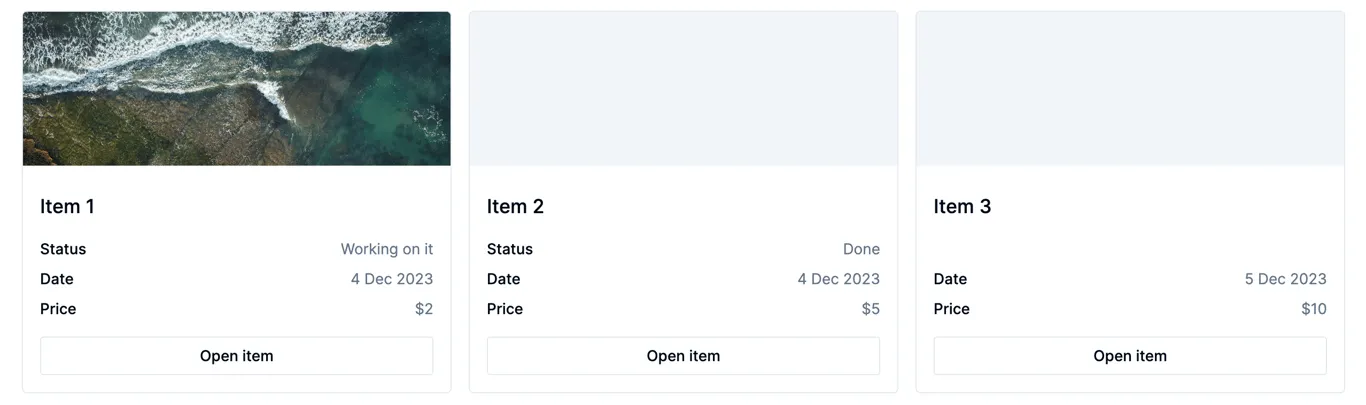
We currently only support images added with the ‘From Link’ option within a file column. This will then prompt you to enter the url of the hosted image (see examples of hosts below) as well as a name to describe the image.
Examples of popular image hosts:
Section titled “Examples of popular image hosts:”- Cloudinary
- Dropbox (make sure to make the image public and append
&raw=1to the end of the url) - Google Drive (ensure that the image is set to ‘public’)
- Upload directly to your website (e.g. Squarespace, Wordpress, Shopify etc)
Adding custom buttons and links
Section titled “Adding custom buttons and links”In addition to the ‘open item’ button, you may also want to add other links which are custom based on your board’s data.
Example of the “Buy now” button which contains a custom link:
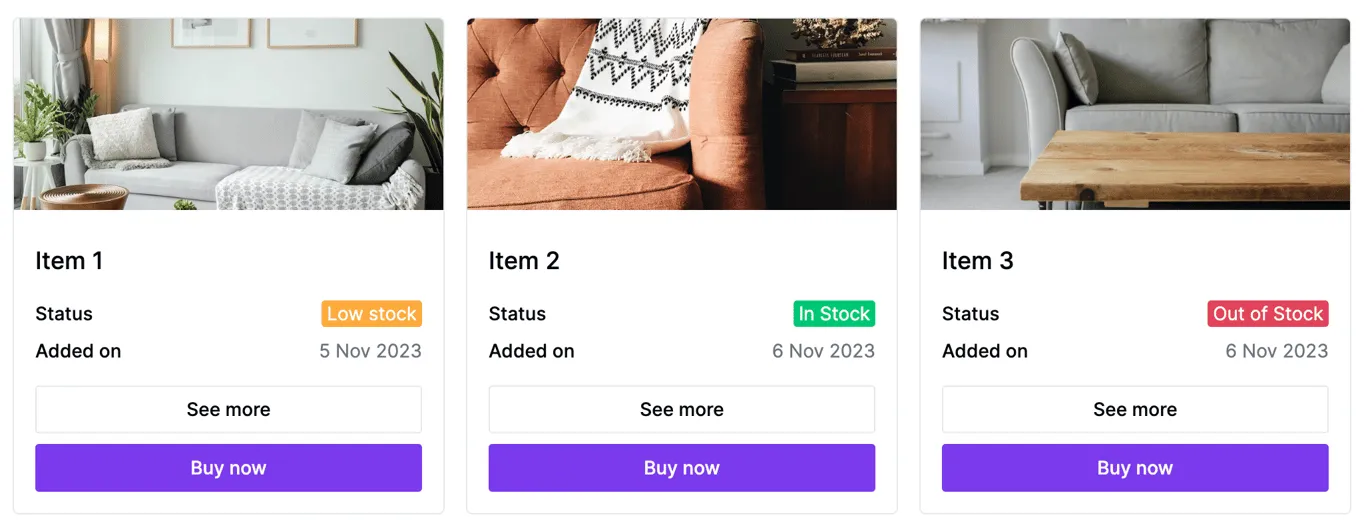
To achieve this, add a formula column to your board (or use an existing one) and make sure it resolves as a valid url (including https:// at the start). Then, within the Board Publisher settings, go to the ‘Columns Customisation’ section, add the column and toggle on ‘Link enabled’ under the ‘Formula column settings’ for this column.
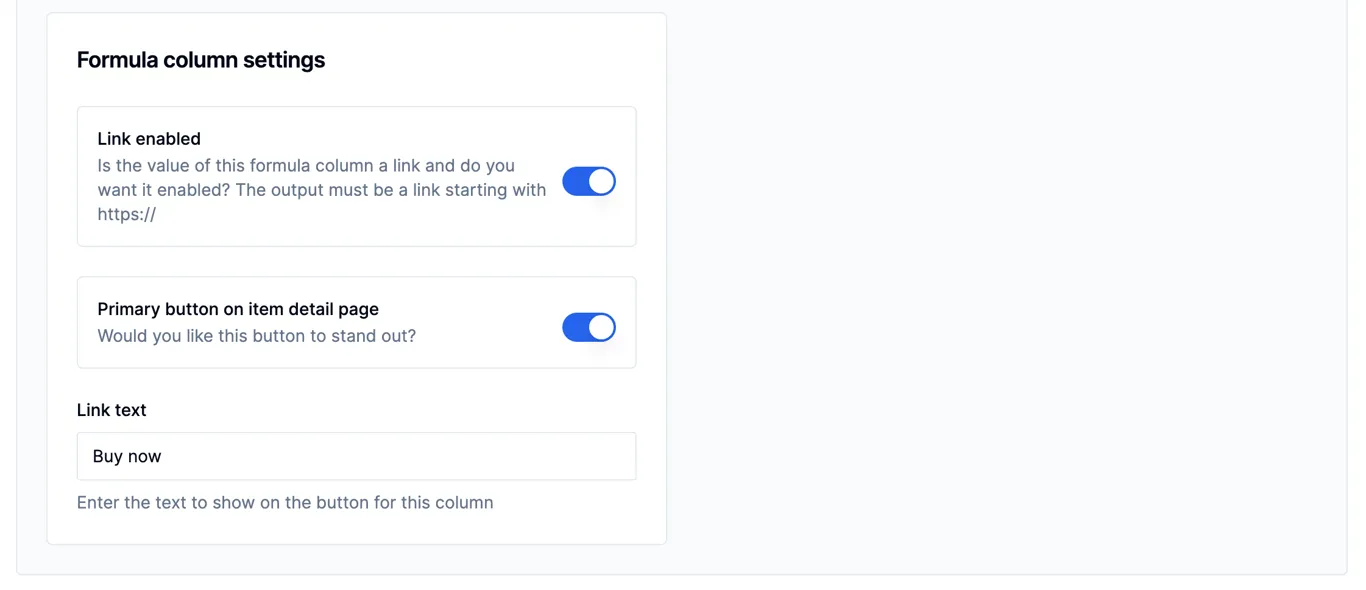
You then have the option to select whether it should be a primary button (so it shows as a standalone button). If this toggle isn’t selected, it will display as a regular column value with a hyperlink. For example:
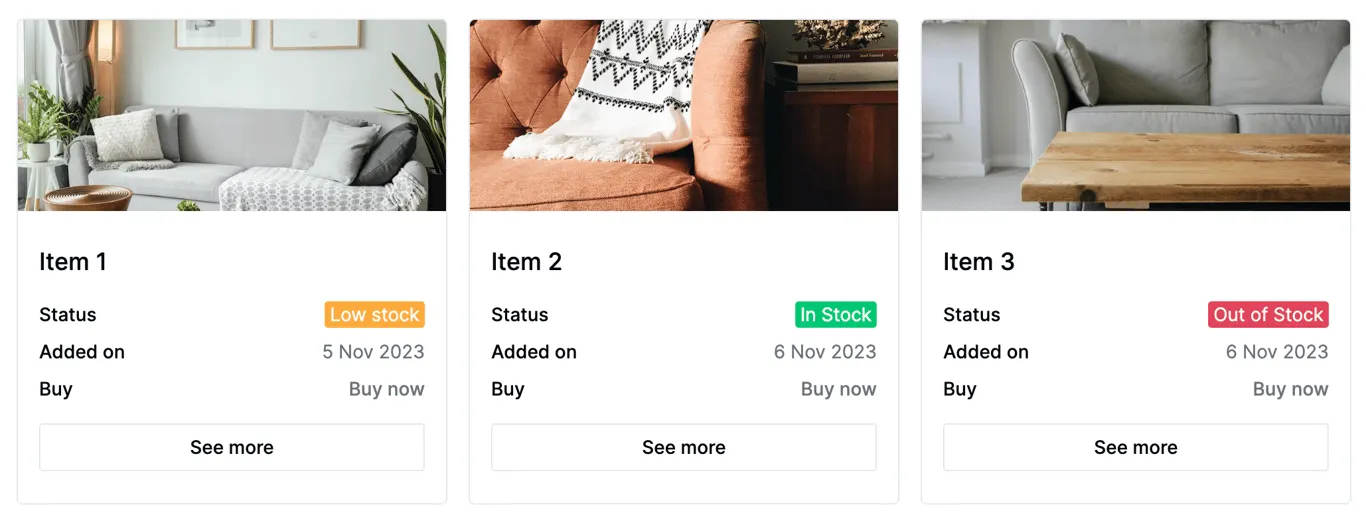
The formula column settings for the link will be updated on both the ‘all items’ page and the ‘item detail’ page (provided they are both being shown) to allow the link to be easily accessed.
Examples
Section titled “Examples”If you just need a static link, simply wrap the link in quotes:
"www.example.com"You can also create dynamic links using values from other columns and all the other formula offerings. For example:
"www.example.com/"&{Name}For example, if you have a column named “Link” reference it in the formula column like so:
{Link}